Account for business clients
The nearest branch
Calculate customs duties
Delivery terms
Packaging
Create a shipment
Allowed products
Answers to frequently asked questions about using the My Nova Post account for business customers
Choose the question you are interested in and click on the to display detailed explanations
Signing up and logging in to My Nova Post for business customers
- Getting an opportunity to send parcels on behalf of your company from your My Nova Post account
To create parcels on behalf of your company, and to track and manage your company's parcels through the My Nova Post personal account, you will need to sign an agreement with Nova Post and designate an authorized representative
- 1Sign an agreement with Nova Post. To do so, please contact the sales department:
- 2Provide the details of your company's authorized representative who will be responsible for creating the shipment in the agreement.
- First and last name
- Phone number
- Email address
Read more about concluding an agreement with Nova Post here
- 3Inform the Nova Post manager about your need to link the legal entity's profile to the account of the selected representative. The company's data will be automatically uploaded to the representative's account in My Nova Post.
If there is still no profile created in your account under the specified phone number, you must first sign up for My Nova Post and then contact the manager to request the integration.
- How to sign up to My Nova Post
Swipe through to see the photo manual
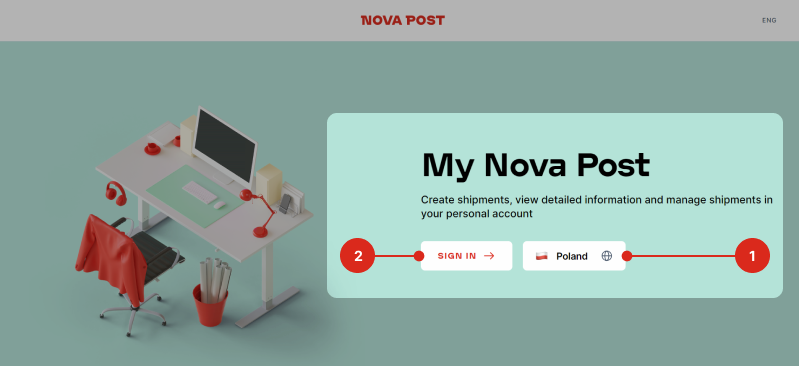
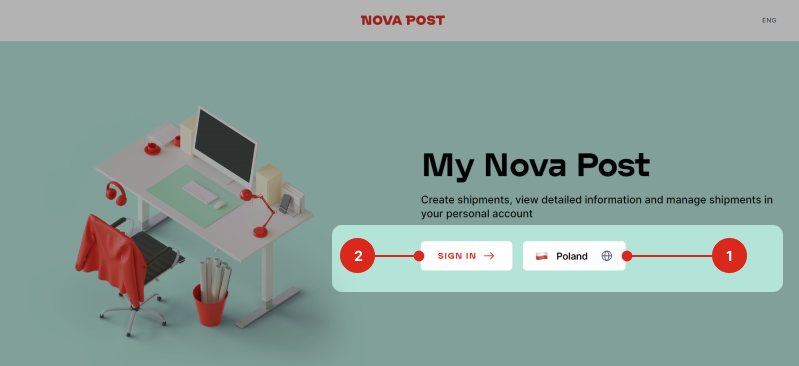
Go to the my.novapost.com sign-up page, select your authorization country, and click "Sign in".
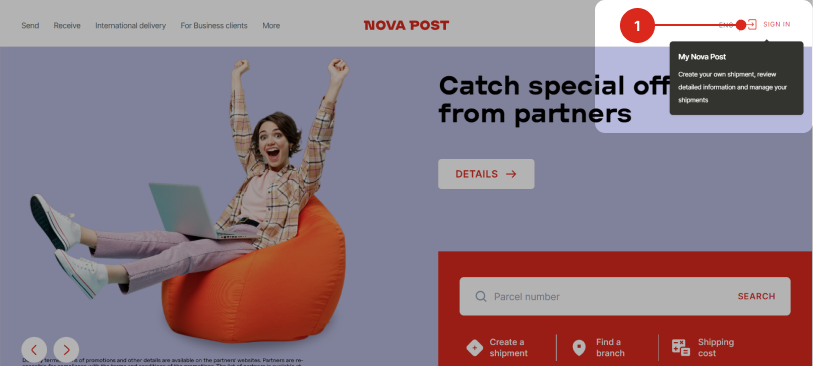
You can also access the home page of your personal account in the upper right corner of any novapost.com page.
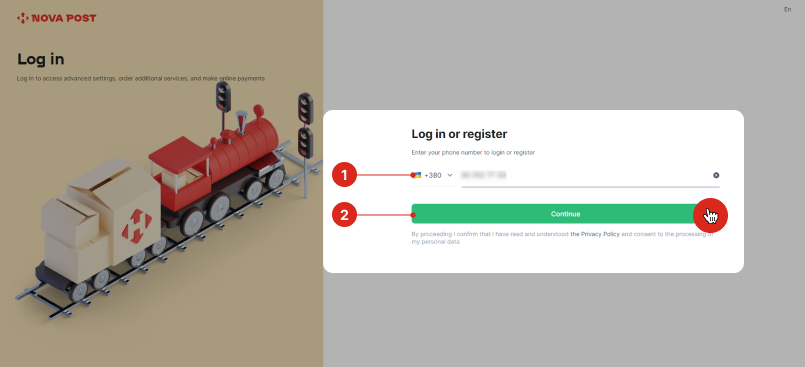
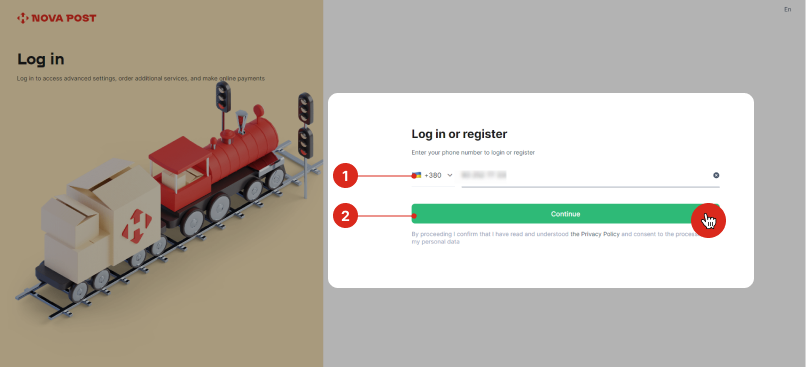
Specify the number listed as the phone number of the authorized representative and click "Continue".
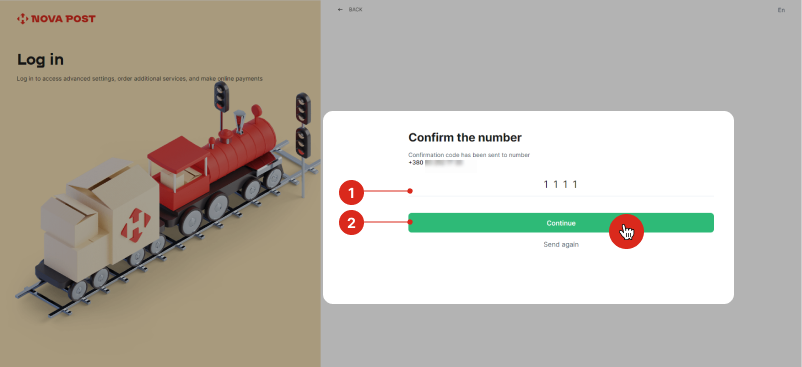
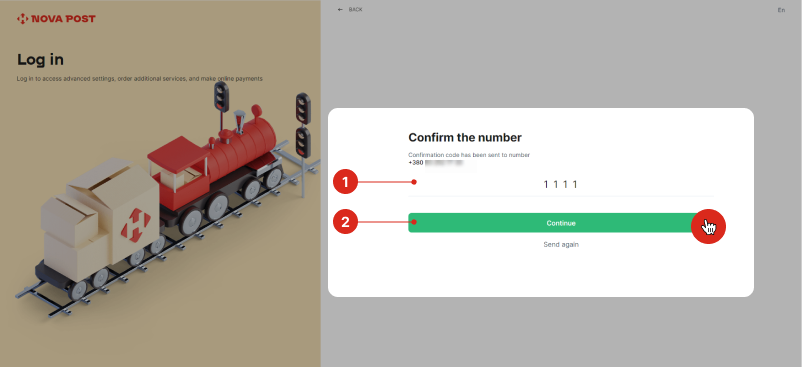
Enter the OTP code that will be sent to your phone.
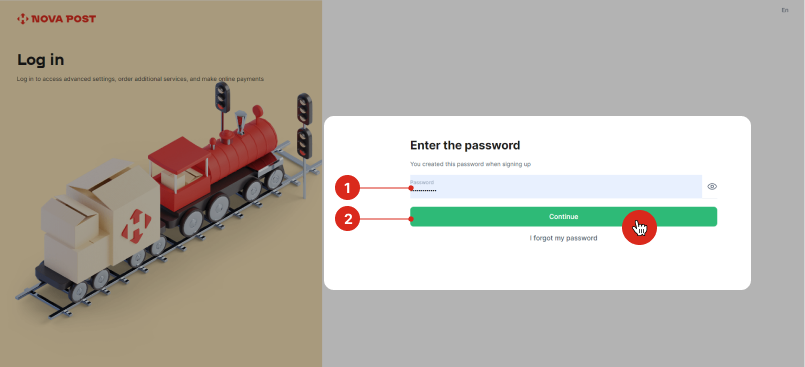
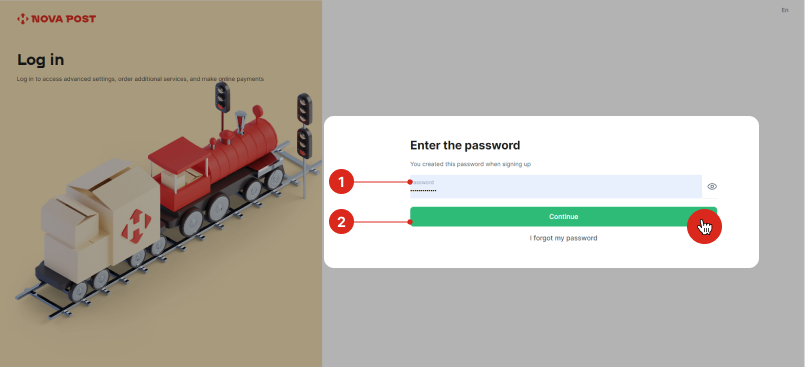
Set a login password and click "Continue".
My Nova Post personal account is now created. - How to log in to your My Nova Post account
Follow the direct link to the my.novapost.com home page or follow the instructions:
Swipe through to see the photo manual
Click on Login in the upper right corner of any novapost.com page.
Go to the home page of your personal account, select the country where you will receive and send orders as a representative of a legal entity, and then click the "Login" button
Specify the number listed in the agreement as the phone number of the authorized representative and click "Continue"
Enter the OTP code that will be sent to your phone.
Enter your authorization password if you are already signed up with this number in My Nova Post If you are logging in for the first time using this number, set a login password. Then click the "Continue" button.
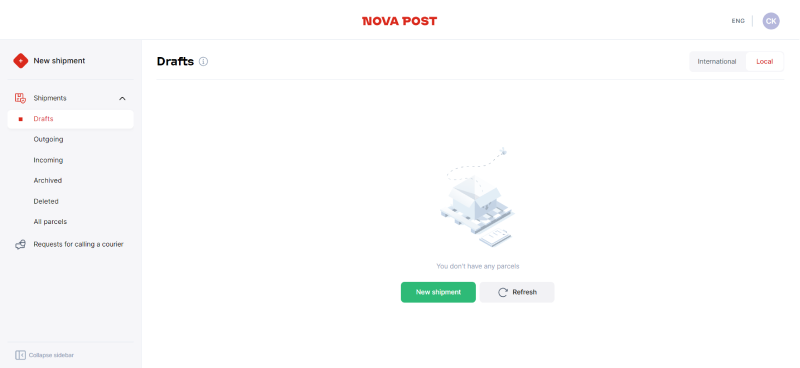
You are now logged in to your personal account. - How to switch your personal account to a company account
There are no additional switches required in My Nova Post to use your personal account as a business client.
To access the company's shipment details and send and receive parcels on behalf of the organization, your My Nova Post account details must be specified in the agreement with Nova Post as the representative's information.
Once your account is linked to your company account, you can select either yourself or your company as the sender and access your organization's shipments.
My Nova Post personal account is a single-window user space for Nova Post customers. With the same account, you can send parcels both on your behalf and as an authorized representative of a legal entity.
Find useful information about working with My Nova Post:
- How to check whether a company profile is linked to a company representative profile
You can view the company's shipments, as well as create and send parcels on behalf of the organization only with the profile of the selected authorized representative, whose data is specified in the agreement with Nova Post. Once an agreement is signed, the manager must link the authorized representative's profile to the company's profile. To check whether your profiles are linked in your account, following the instructions:
Swipe through to see the photo manual
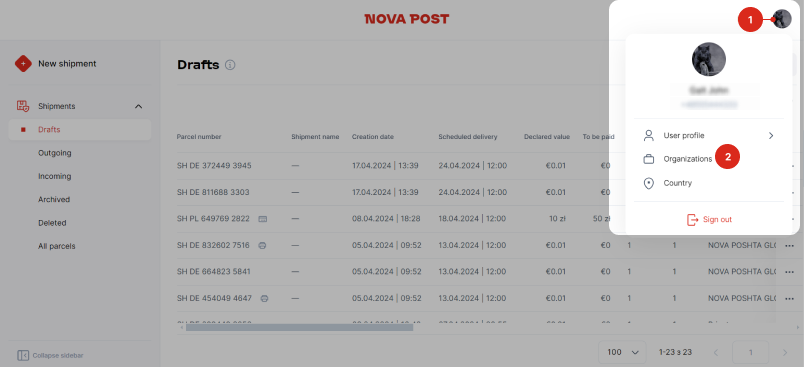
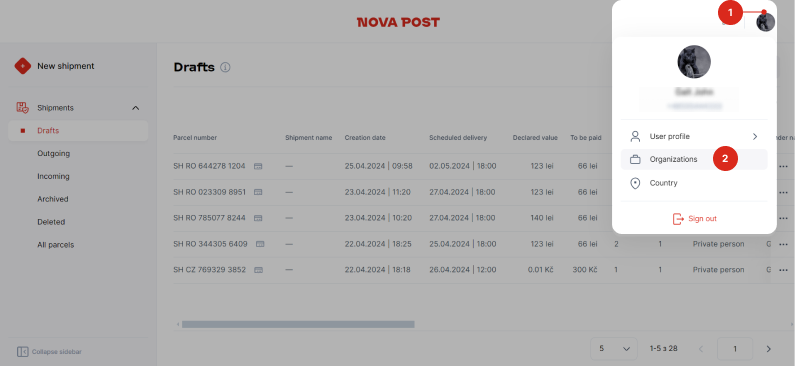
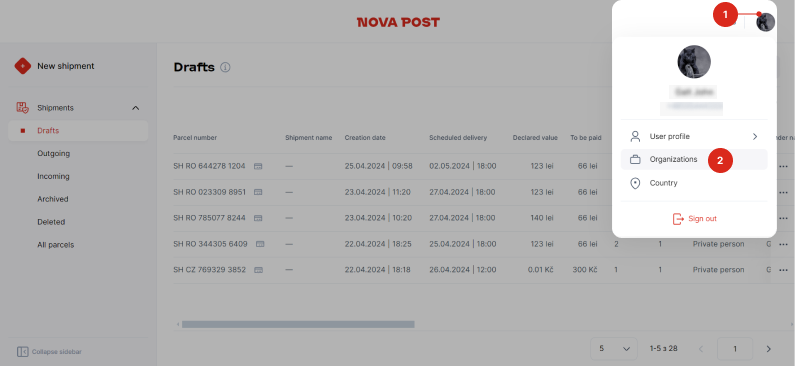
Click on the account icon in the right corner and go to the "Organizations" section.
The tab will display the organizations associated with the phone number provided during authorization.Useful information to get started with My Nova Post:
- What to do if the company account is not displayed in the "Organizations" section
To view the company's shipments in your account, the phone number you use to log in must be listed in the agreement as the contact information for the company's authorized representative.
- 1Make sure you log in to your personal account with the phone number specified in the agreement.
If required, please contact your manager to clarify or change the data. - 2Send a request to your manager to attach a company account. The manager will pair the legal entity's account with the selected representative's account. Once linked, the company's data will be automatically uploaded to the representative's account in My Nova Post.
Shipment handling
- How to send company parcels with My Nova Post
- 1Create electronic waybills for your company's shipments in My Nova Post.
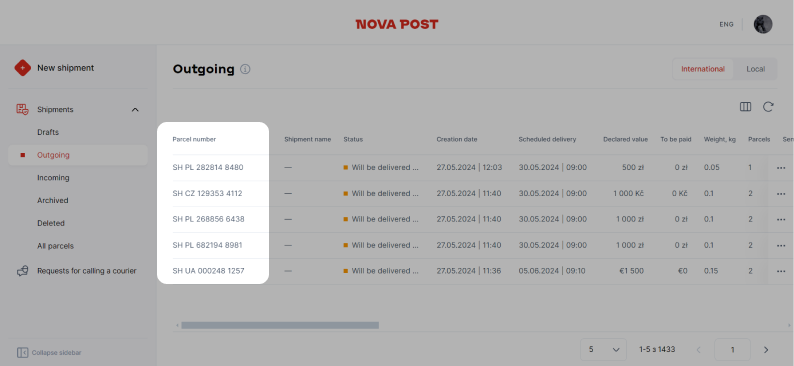
An electronic waybill refers to an online document with a unique number that encompasses all essential details about the sender, recipient, and the parcel itself.
The electronic waybill number is your parcel's identifier in all Nova Post systems.Read more about creating an electronic waybill in My Nova Post
- 2Prepare the parcels to ship.
When sending from an address or a parcel locker, be sure to pack the parcel according to packaging standards.
- 3Send the parcels via the chosen method using the electronic waybill number provided: from a branch, address or parcel locker.
- 4
- 5At the end of the billing period, you will receive an invoice to the email address specified in the agreement for the delivery services provided.
Find useful information about working with My Nova Post:
- How to create an electronic waybill in My Nova Post on behalf of an organization
Swipe through to see the photo manual
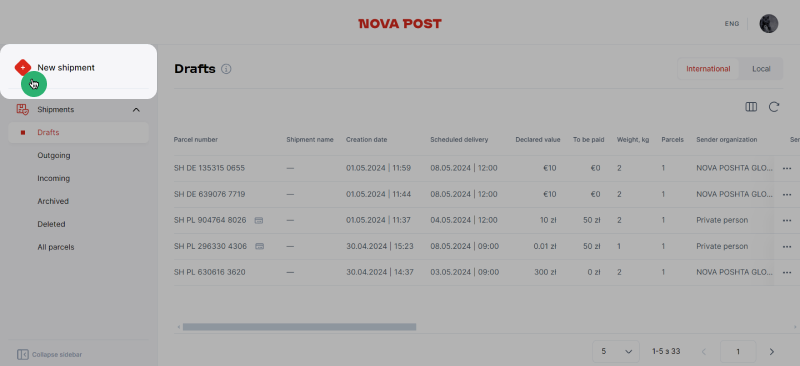
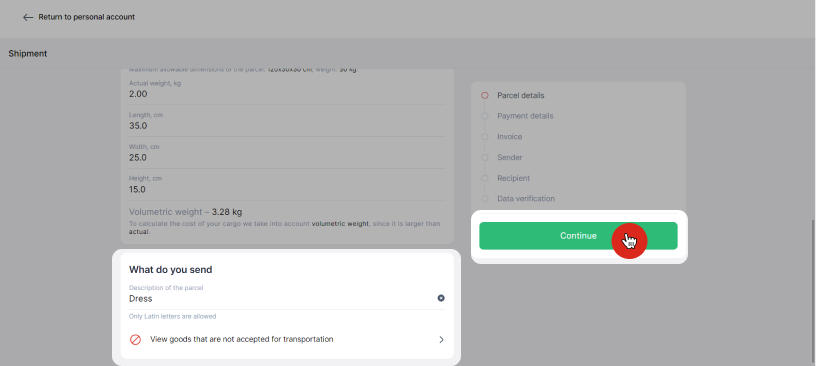
- 1Click the "New Shipment" button in your account and fill in the parcel details:
The "New Shipment" button is always there in the upper left corner.
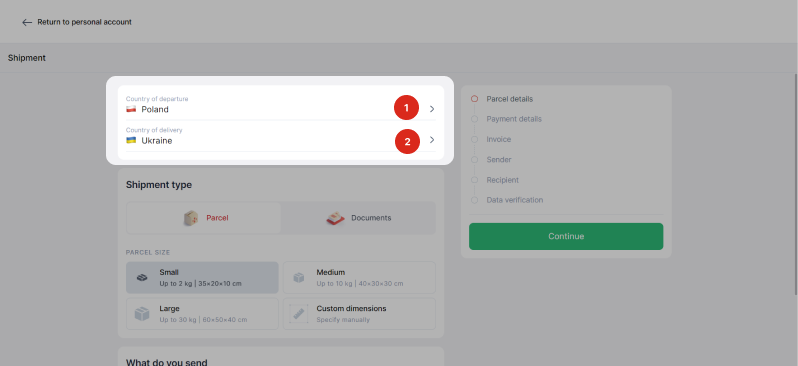
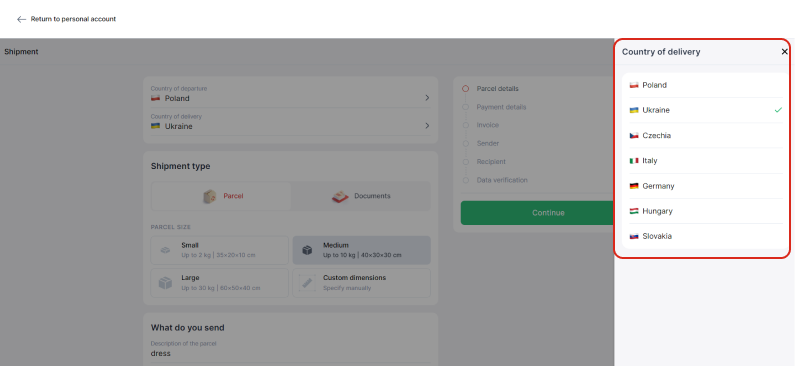
Specify the countries of delivery and dispatch.
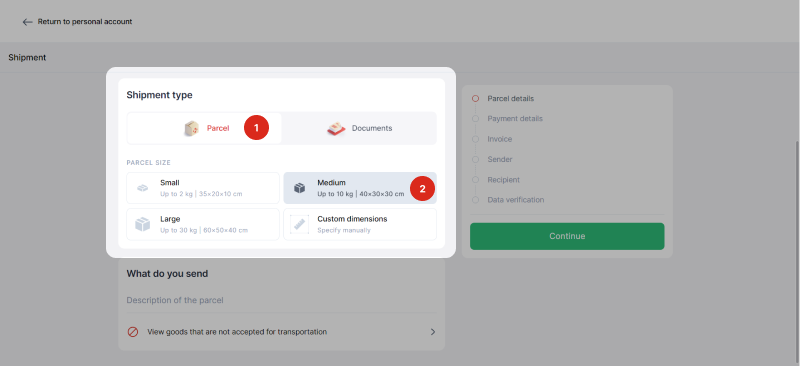
Specify the shipment type and parcel size, or enter the parcel dimensions manually.
The parcel type will be determined automatically. Find out more about calculating the weight and type of parcels.
Add a description to the parcel in any language, but only in Latin characters, and click "Continue".
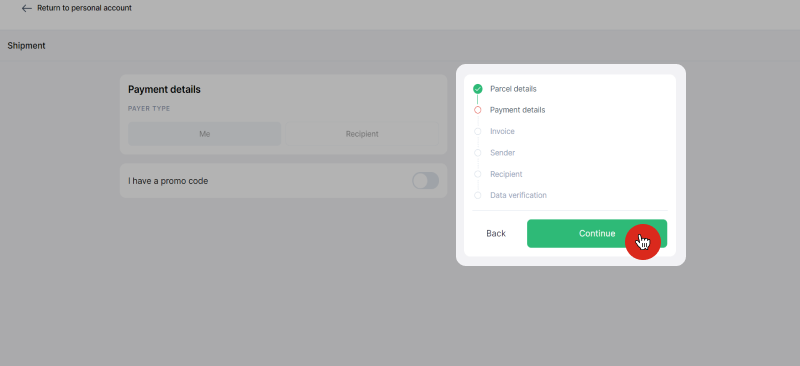
Skip the "Payment Details" section and click the "Continue" button.Later on, the "Payment Details" section will allow you to choose whether the sender or the recipient will pay for the delivery. Currently, only the sender can pay for the service. Also in this section, there is a field for entering a promo code; however, it is not currently applicable for business customers. Promo codes can only be used for shipments made by individuals.
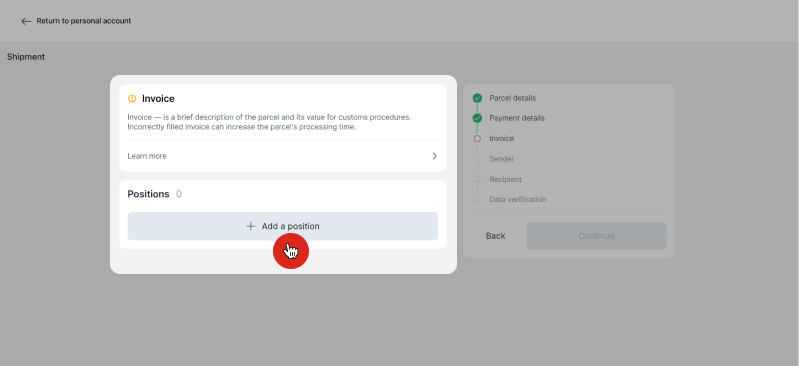
- 2Create an invoice.
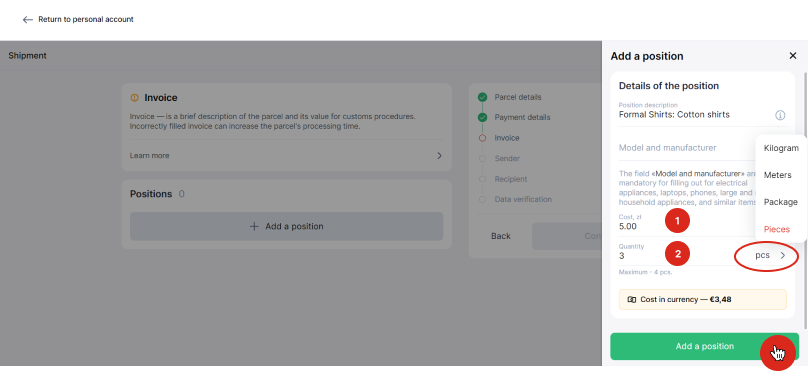
Add a description for each parcel item using the "Add item" button.
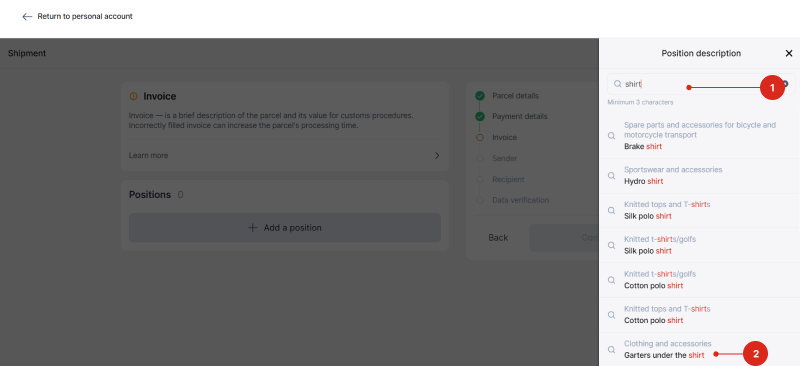
Complete the item description. Start entering the name of the product and select the one you want from the list.
Fill in the item details: cost, quantity, units of measurement, and click the "Add Item" button.
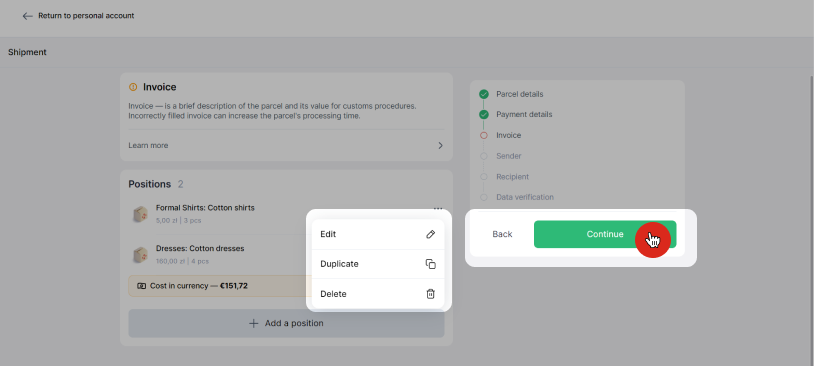
Once all the items are added to the invoice, click the "Continue" button.
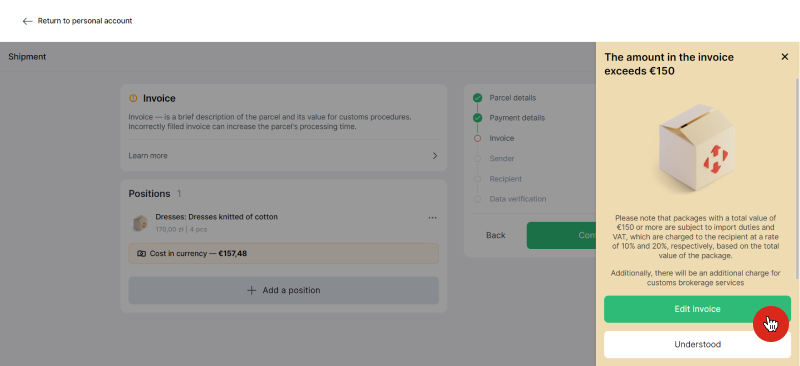
In certain cases, when the total value of the parcel exceeds €150, you will be notified about potential additional taxation.- 3Specify details about the place of dispatch and the sender.
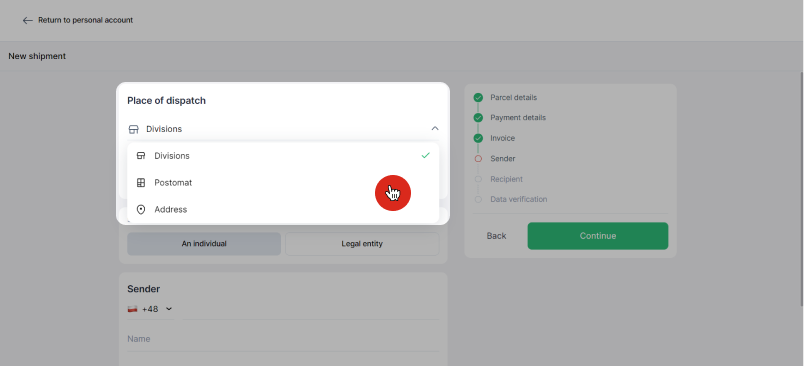
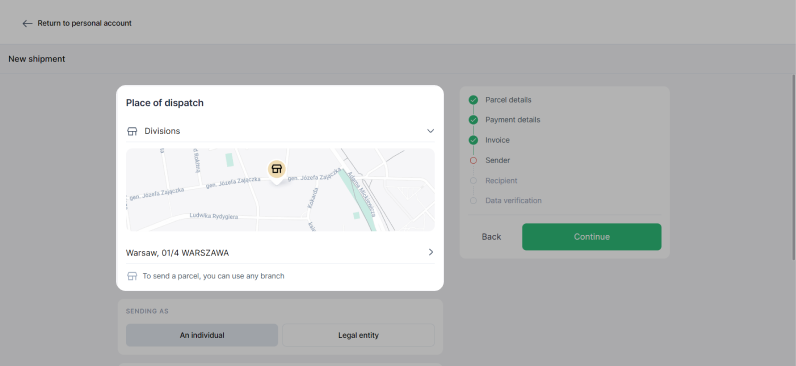
Select a place of dispatch: from a branch, address or parcel locker.
Select a city of dispatch and provide detailed information about the place of dispatch: the number of the branch, parcel locker, or address to which you will call the courier to pick up the parcel.
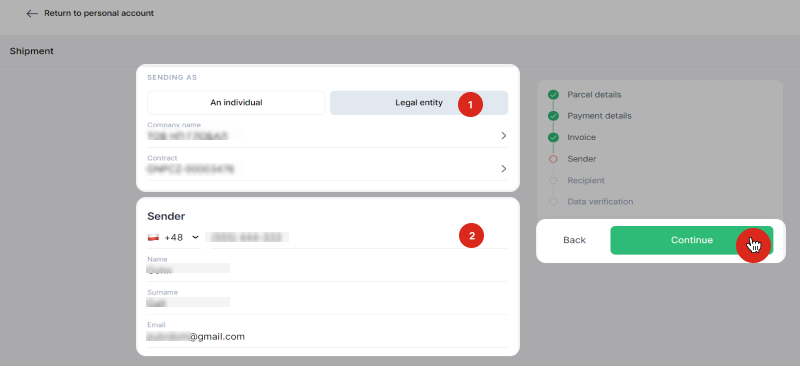
Fill in the "Sending as" and the "Sender" sections: select a legal entity and an agreement from the lists, then enter your details. These must match those specified in the agreement as the company representative's data. Once the section is complete, click the "Continue" button.When sending from a branch or parcel locker, pay attention to the weight and size restrictions for parcels.
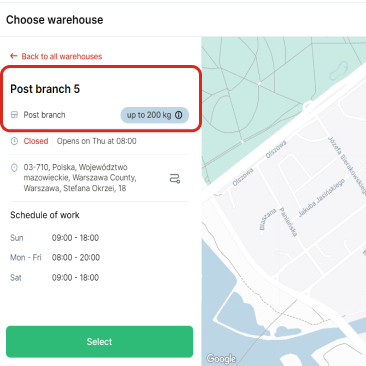
If the actual or volumetric weight of your parcel exceeds the limit specified for the selected branch or parcel locker, please choose another branch.

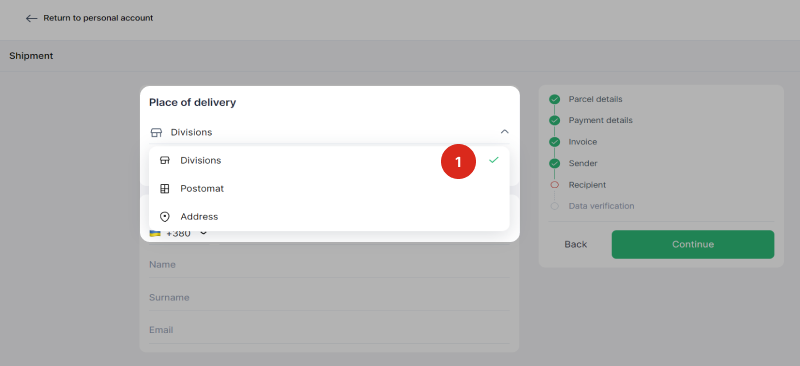
- 4Specify details about the place of delivery and the recipient.
Choose the delivery location
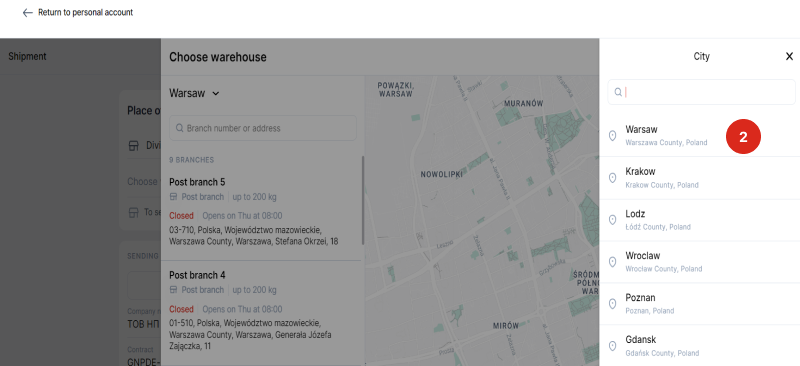
Select a city from the list or find the one you need by searching it.
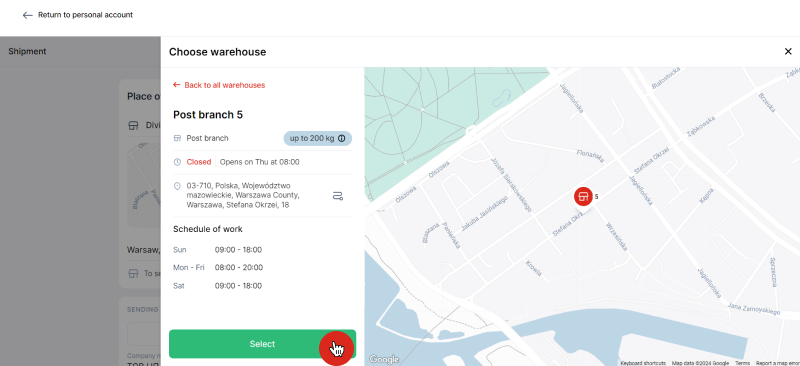
Choose the appropriate branch, parcel locker, or pickup point on the map, from the list, or by searching the address or number. Click the "Select" button in the delivery location profile.
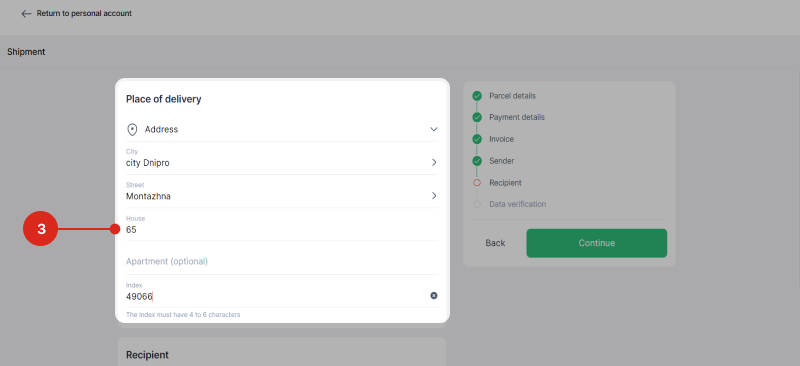
When sending to an address, select a city from the list or find the right one through the search. Enter the street, house number and zip code
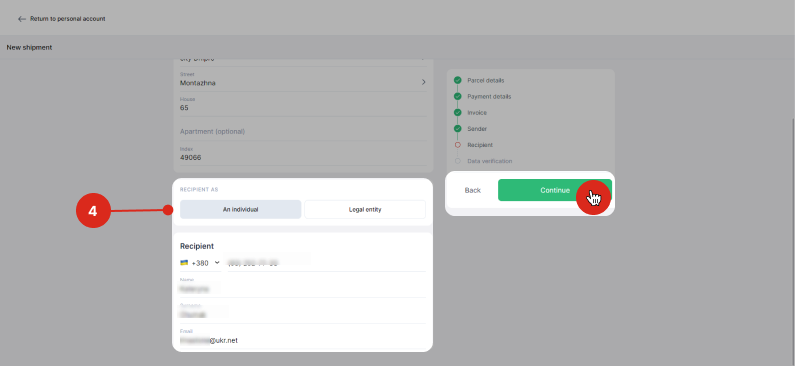
Enter the recipient's phone number and first and last name in Latin characters, and click the "Continue" button.- 5Verify the data you entered before.
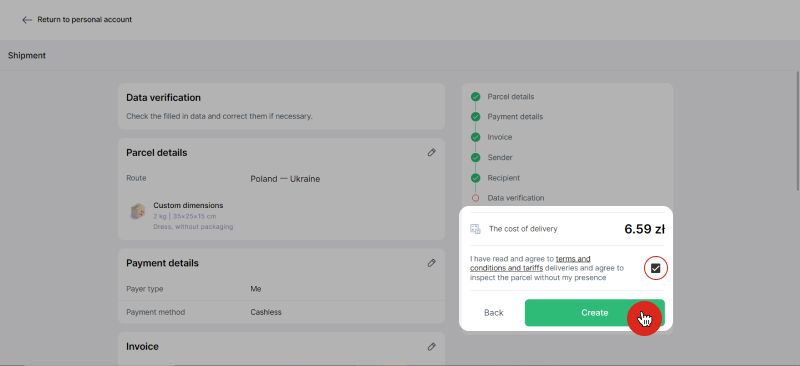
If there's an error, click on the edit section and make changes. Once verified, check the box to agree to the delivery terms and conditions and click "Create".
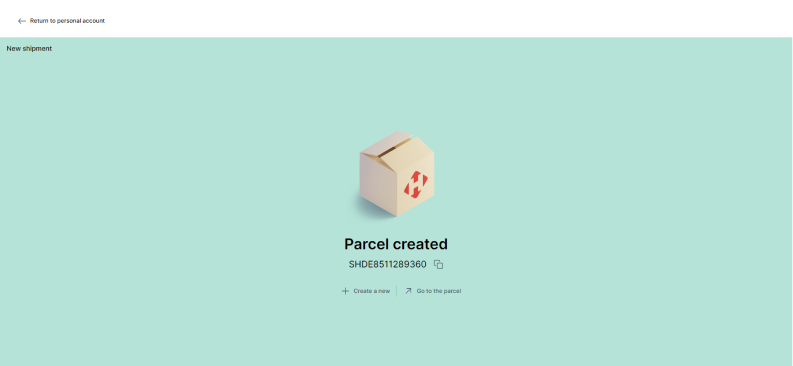
The electronic waybill for sending the parcel has been created, and the parcel can be sent.Find useful information about working with My Nova Post:
- When sending from an address, call the courier after creating the waybill.
- How to send a parcel to a legal entity
You can send parcels to legal entities with My Nova Post. To send a shipment to a legal entity:
- Select a legal entity as the recipient
The recipient's legal entity will be able to receive the parcel even if the company has no logistics services agreement with Nova Post.
See the guide below for more information on specifying the recipient's data when sending a parcel to a legal entity.
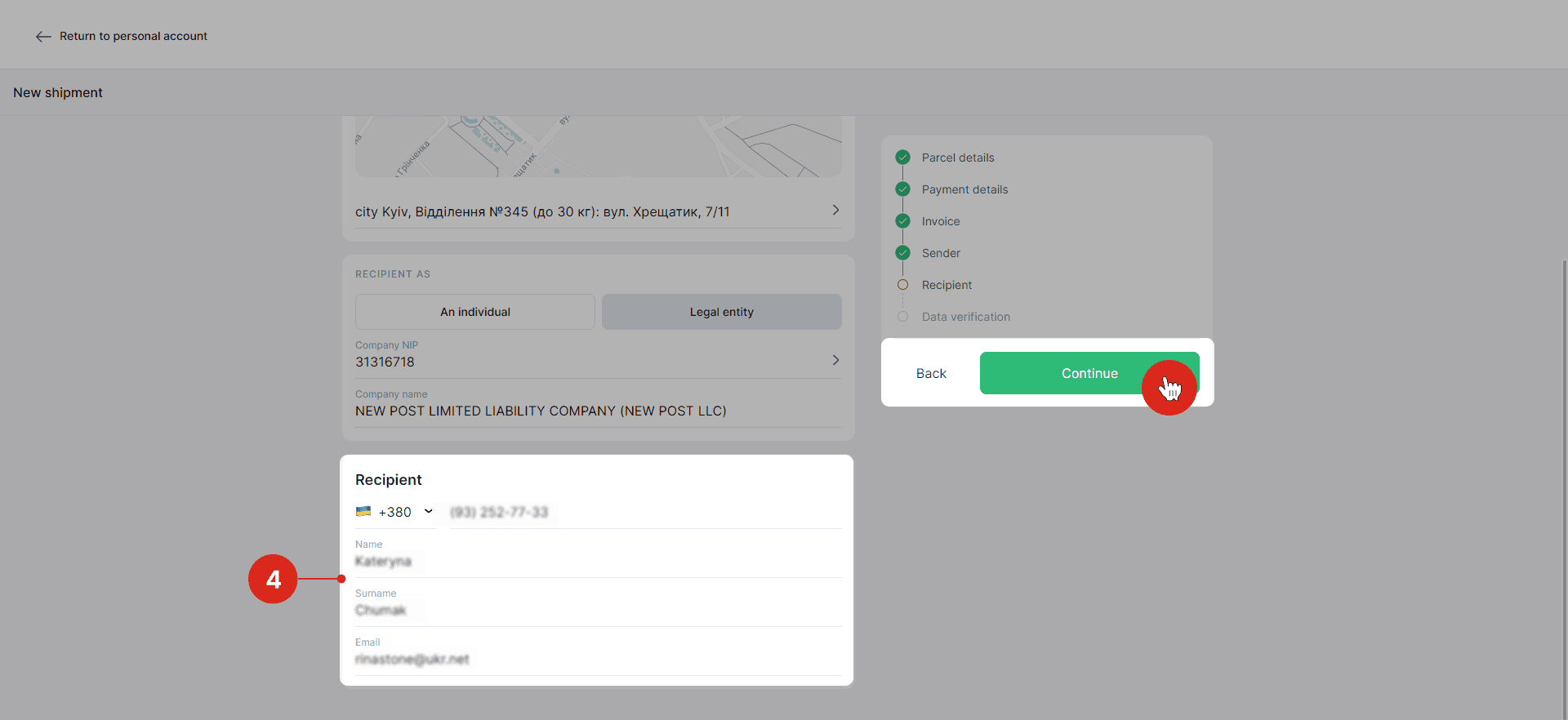
Swipe through to see the photo manual
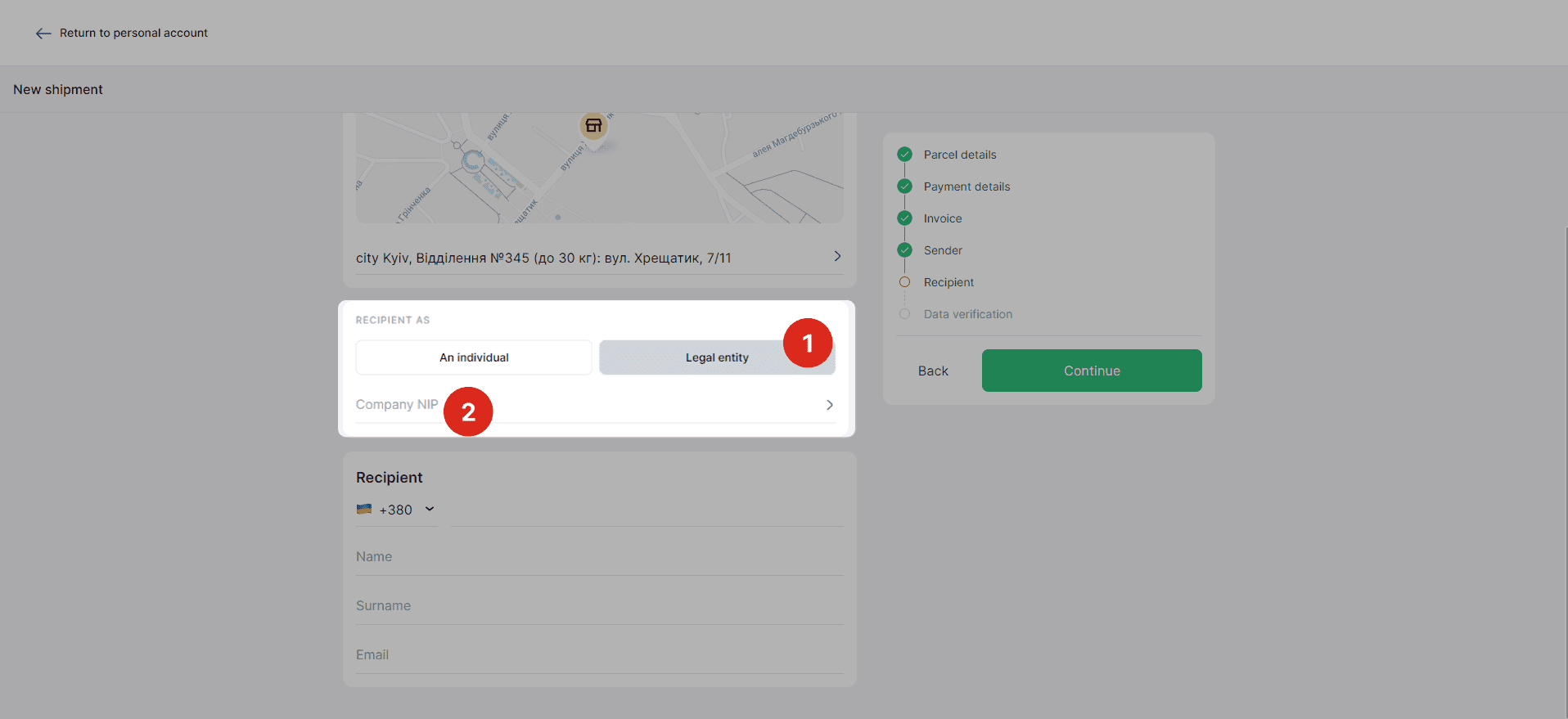
Select "Legal entity" in the "Recipient" section
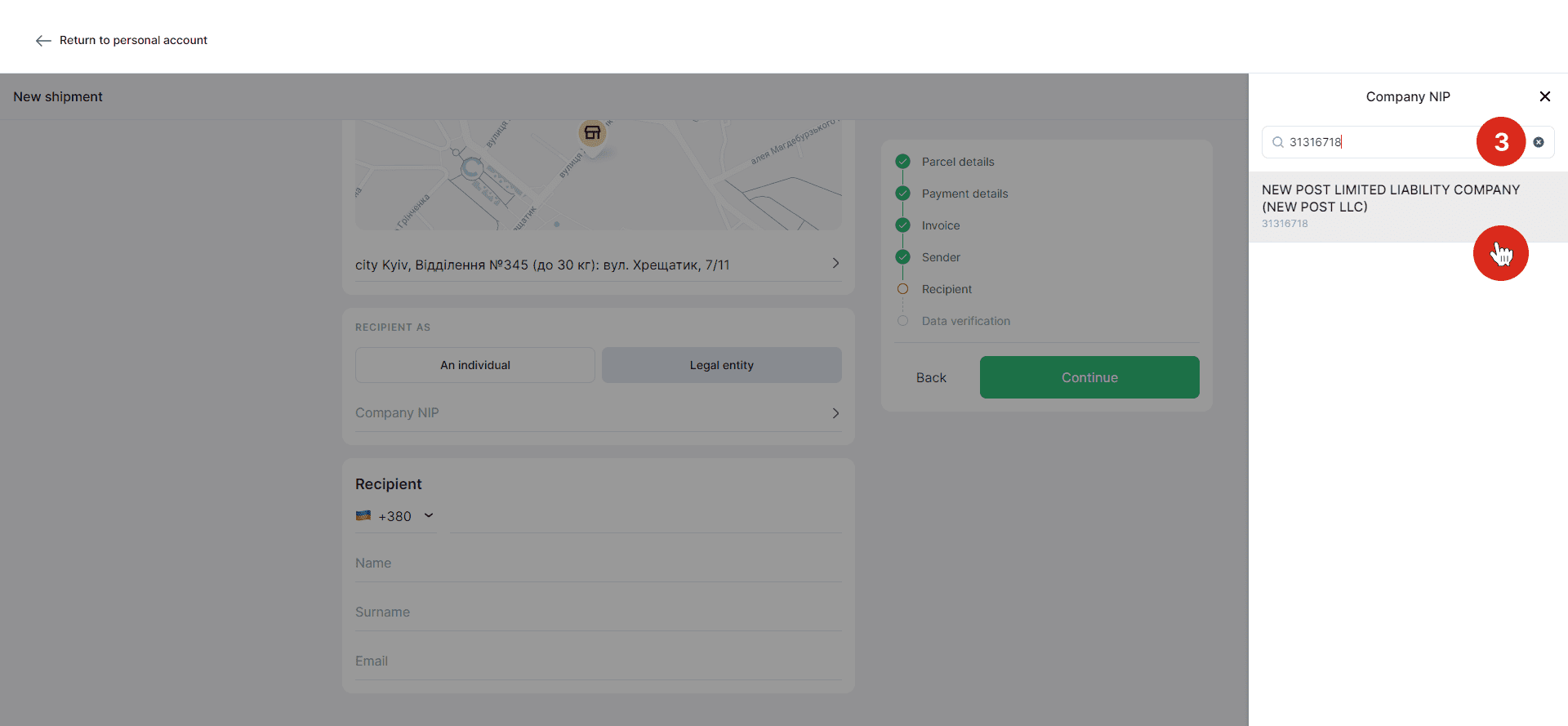
Specify the company's tax number in the search field and select the recipient's legal entity.
Enter the recipient's phone number, first and last name in Latin, as well as e-mail address.What is a company's tax number
This is a specific code assigned by the country's tax authorities to a legal entity for the entire period of its business activity. The recipient should provide you with this number.
- For Polish companies, it is the NIP code
- For Ukrainian companies, it is the TIN (USREOU) code
- How to send a parcel from an address on behalf of a company
To send parcels by courier from your address, follow these steps in your account:
- 1Create an electronic waybill for a parcel to be sent from an address.
- 2Place an order to call a courier and add a previously created electronic waybill to it.
The courier can pick up several parcels at once, so add the required parcels to the relevant order. You can add electronic waybills with the same sender's name, phone number, and address to a single order to call a courier.
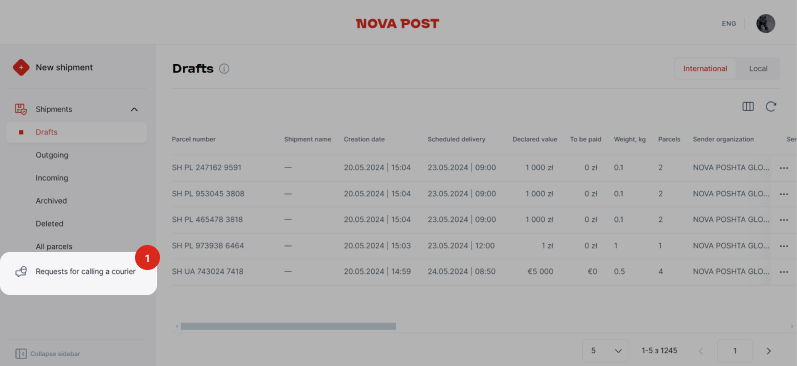
To place an order to call a courier, follow these instructions.
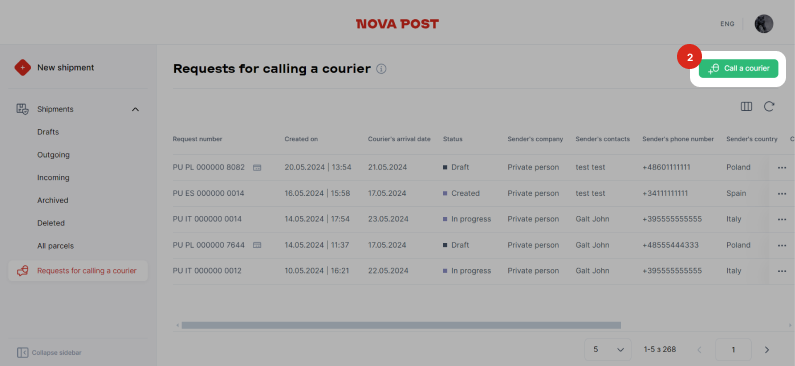
Swipe through to see the photo manual
Go to the "Courier Calls" section. To do so, select the relevant item in the menu on the left.
Click the "Call a Courier" button in the upper right corner of the screen.
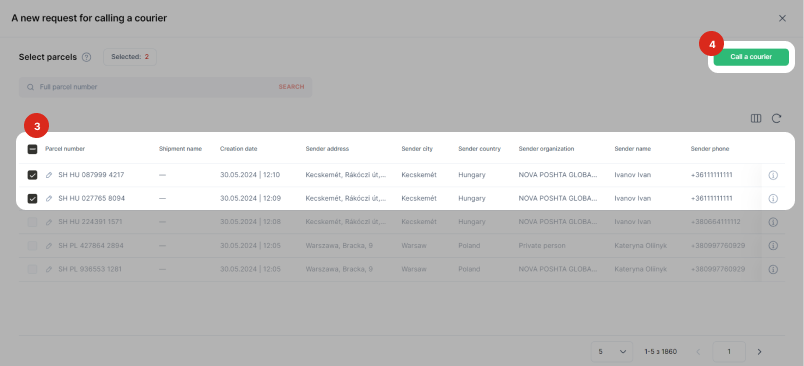
Select the desired parcel or several parcels from the list and click the "Call a Courier" button.
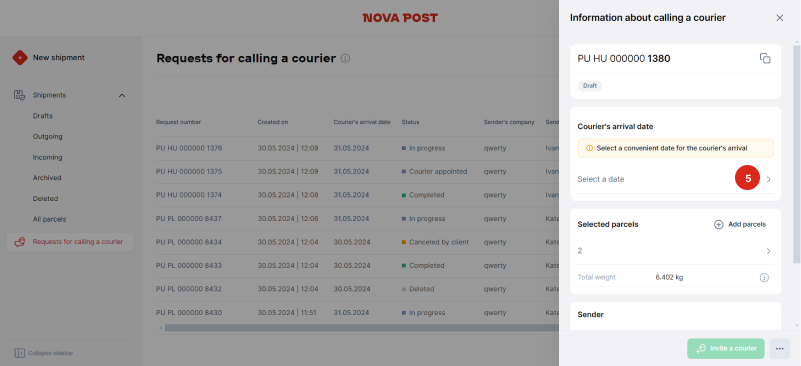
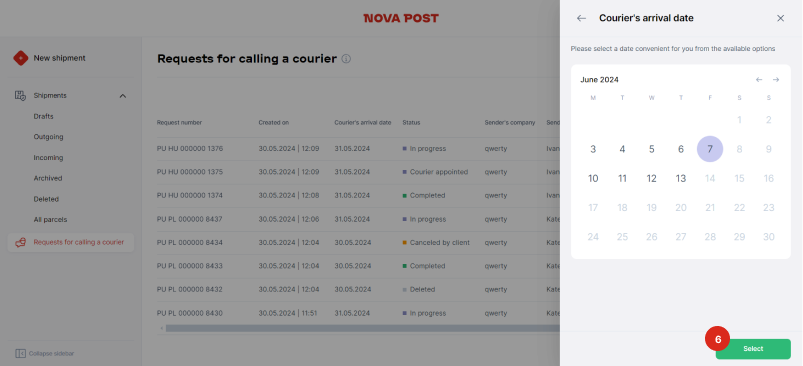
Proceed to pick the date of the courier's arrival.
Select a convenient date.
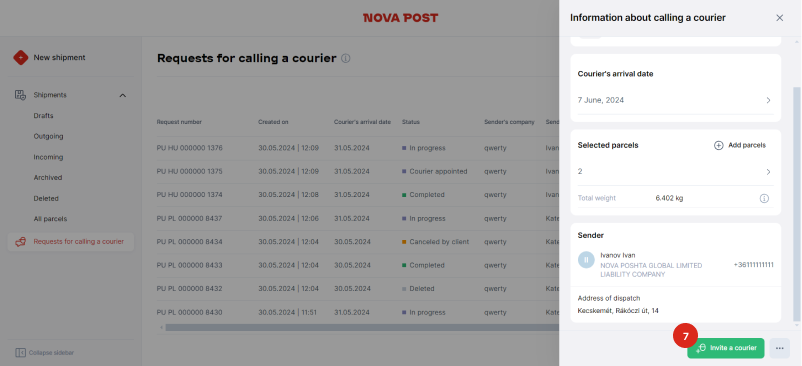
Click the "Invite a Courier" button.
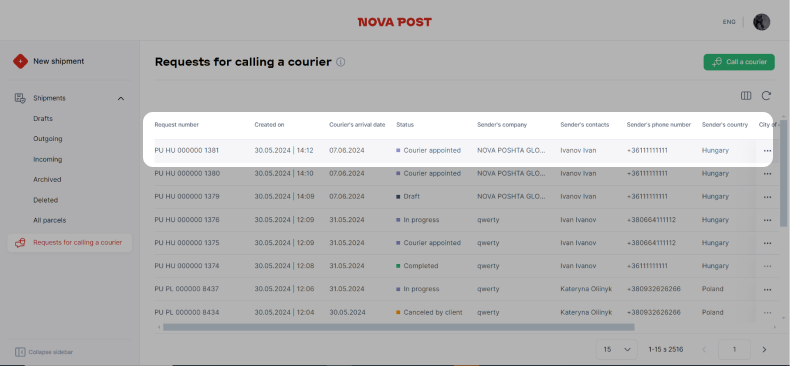
Track your orders in the "Courier calls" section - How to print the label
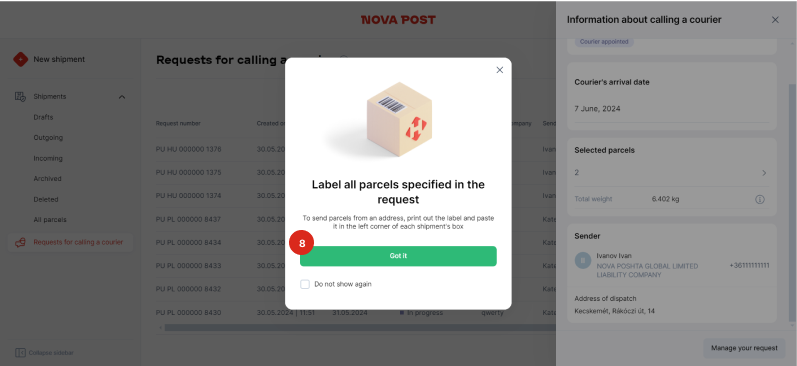
When sending parcels from an address, be sure to label them. Couriers pick up only labeled parcels.
The following supplies are required to print the label:
- Zebra zd421 or other printer with similar specifications
- 100 mm x 150 mm thermal labels for printing
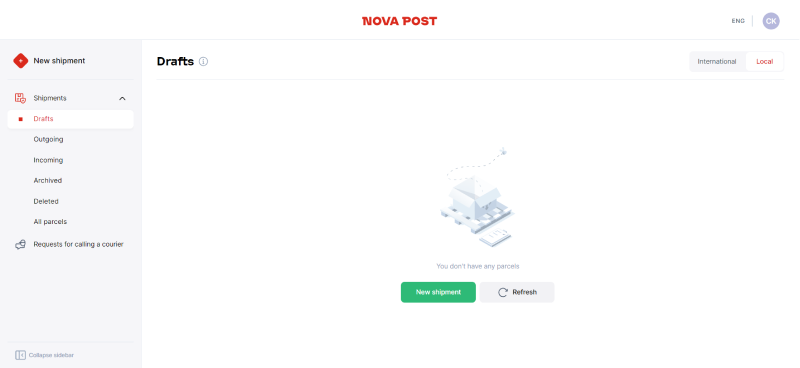
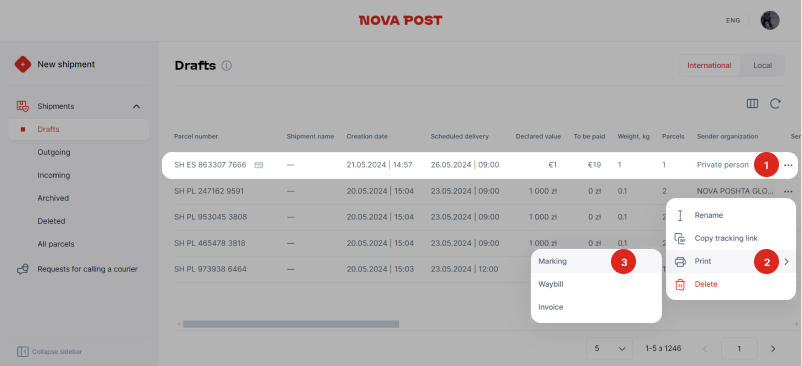
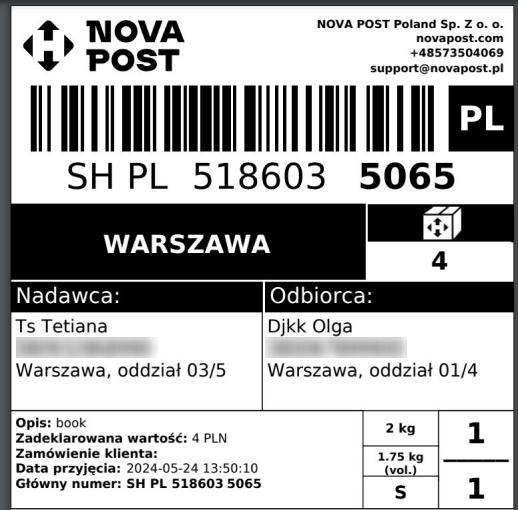
Find the parcel to be labeled in the "Drafts" section. Click on the context menu → "Print" → "Label".Label example:

If you've created an electronic waybill and ordered a courier service in My Nova Post, but you still can't print labels and tag the parcels yourself, contact your personal manager or send the parcels from the branch.
- How to decide which parcel size to specify
The parcel size affects the shipping cost. The largest of the two values is taken to calculate delivery rates:
- Actual weight
- Volumetric weight

Calculation formula:
Volumetric weight (kg) = (Length (cm) × Width (cm) × Height (cm)) / 4 000
For example:
A small parcel is a shipment of up to 2 kg, and a medium parcel is up to 10 kg.
If the parcel weighs 1.8 kg and the dimensions of the parcel are 30 cm x 30 cm x 30 cm:
- Actual weight = 1.8 kg
- Volumetric weight = 30x30x30 / 4 000 = 6.75 kg
Thus, the delivery rate will be calculated by the volumetric weight, so you need to choose the "Medium" size.
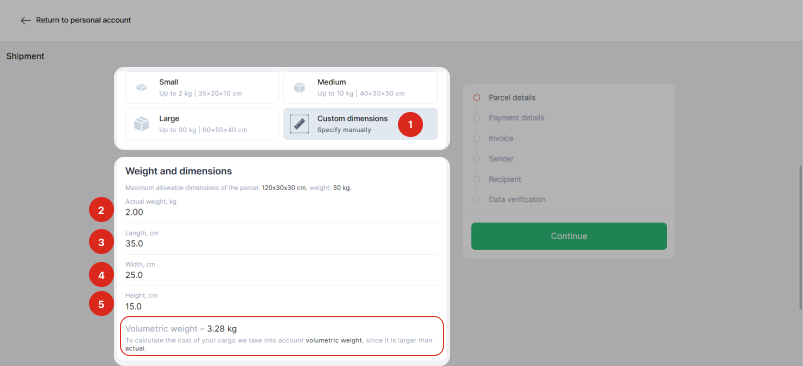
Alternatively, select the "Specify your dimensions" option in the "Parcel size" section and indicate the weight, height, length, and width of the packed shipment. The rate will be calculated automatically. - Why the required country of delivery is not available on the list
Available delivery destinations depend on the country of dispatch and are displayed in the "Country of Delivery" section when creating a parcel. If there is no required country in the "Countries of delivery" section, this direction has not yet been launched for the country from which you want to send the parcel.

Shipment tracking
- How to view your company's shipments in My Nova Post
Swipe through to see the photo manual
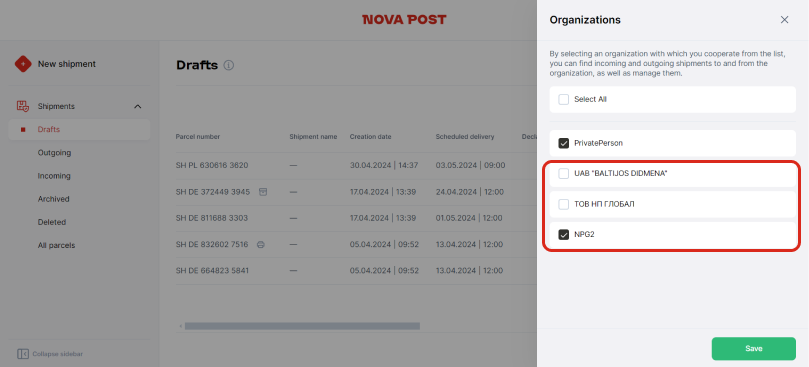
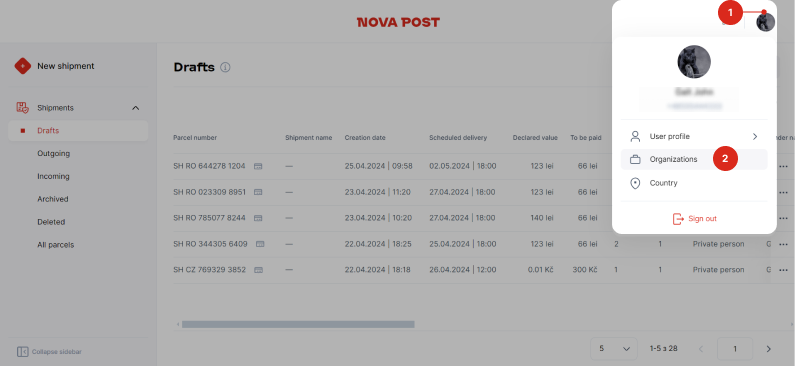
Click on the profile icon in the upper right corner of your account and go to the "Organizations" section.
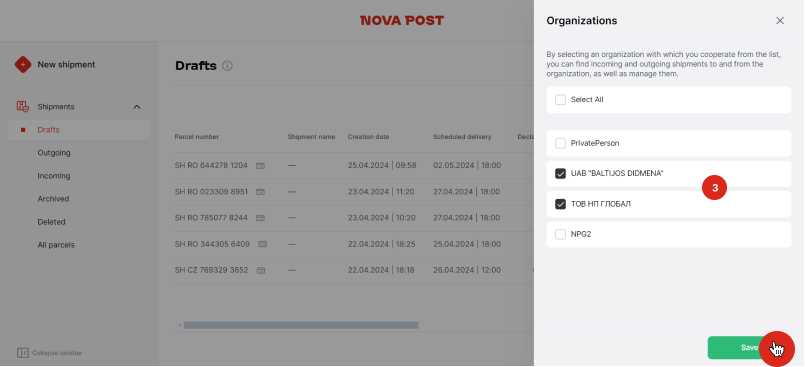
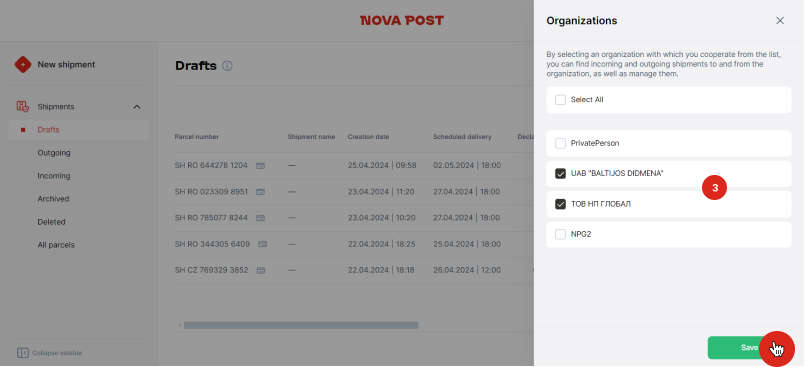
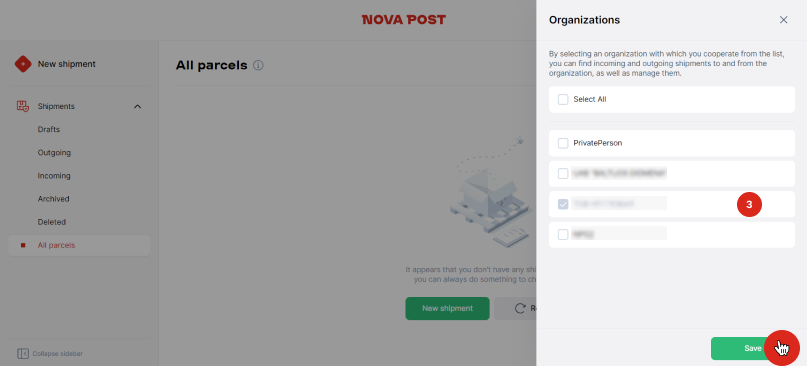
The tab will display the organizations associated with the phone number provided during authorization. Check the box next to the name of the organization and click the "Save" button.
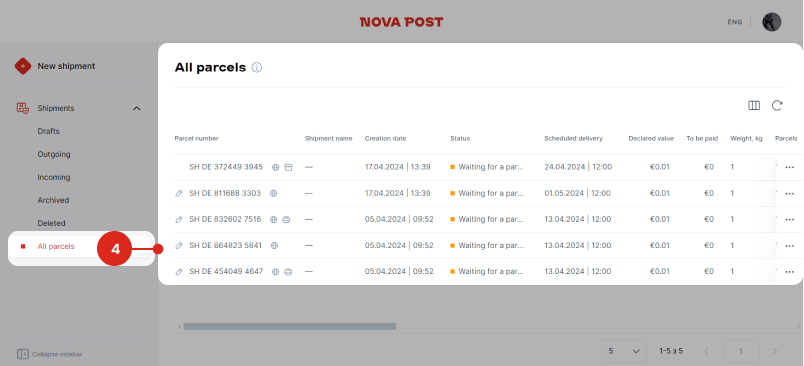
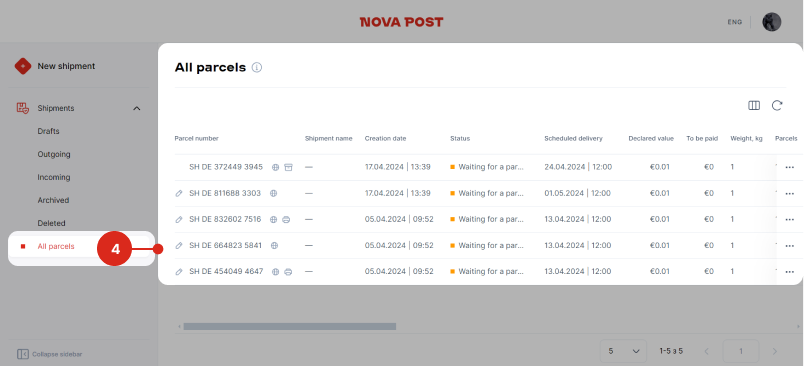
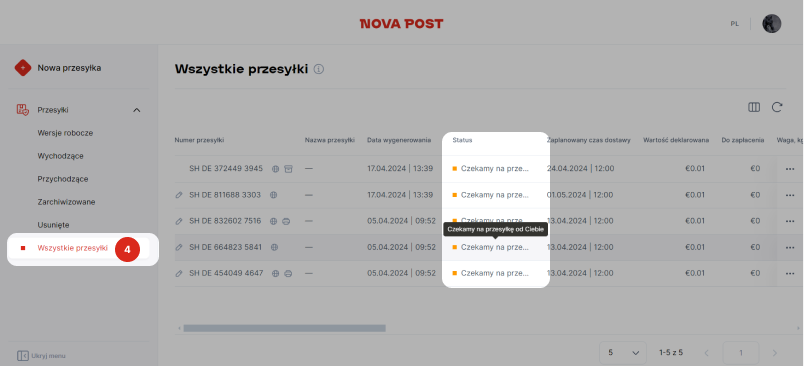
Go to the "All Parcels" section by following the link or the path indicated on the screen. You'll now see all shipments of the selected company in this section. - What to do if only personal parcels are displayed in the account with no company shipments show
Swipe through to see the photo manual
Click on the account icon in the right corner and go to the "Organizations" section.
Check the box next to the organization name and click "Save".
Useful information for working with My Nova Post:
- How to track company parcels
To access the company's shipment details and send and receive parcels on behalf of the organization, your My Nova Post account details must be specified in the agreement with Nova Post as the representative's information.
Once your account is paired with your company account, you can track your organization's shipments.
If your company is not displayed in the "Organizations" section, please contact your account manager.
To view the delivery status of all parcels in your account:
Swipe through to see the photo manual
Click on the account icon in the right corner and go to the "Organizations" section.
Select the organization whose shipments you want to see, and uncheck the others. Click the "Save" button.
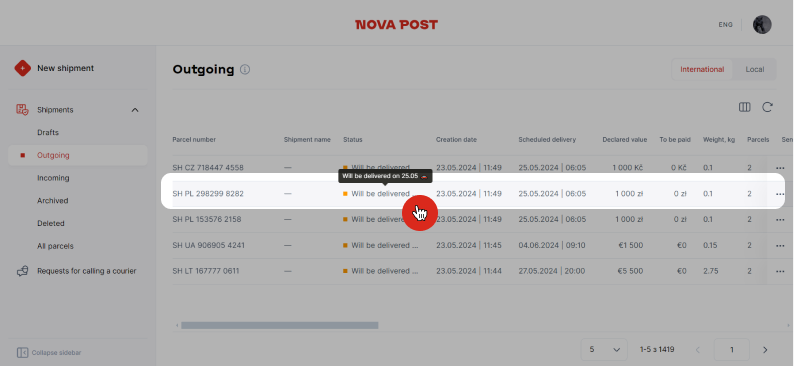
Go to the "All parcels" section. It will now display all the shipments of the selected accounts. The delivery status will be displayed for each shipment.To view the detailed tracking of a particular shipment in your account:
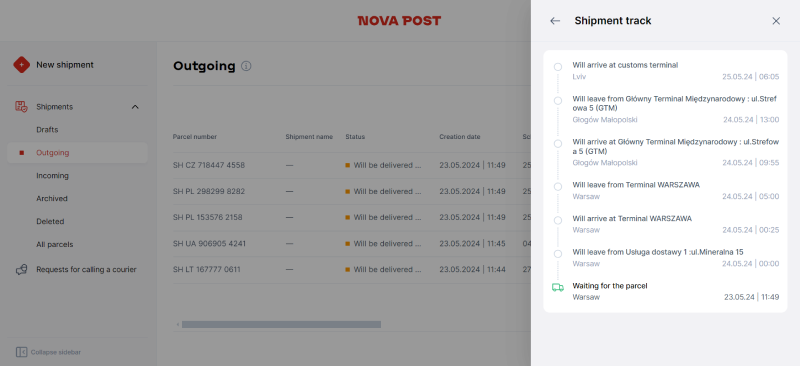
Move the pointer over the status of the desired parcel in the "Parcels" section and click on it.
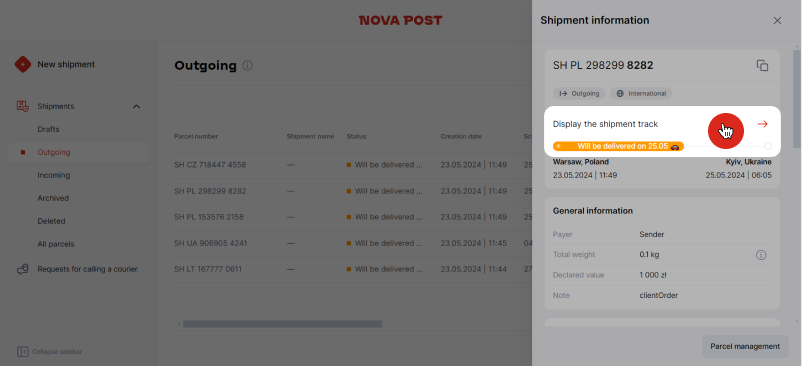
A tab with detailed information about the parcel will open. Click the "Show parcel path" button in the tab.
The detailed parcel path will be displayed on the screen.Besides, each separate shipment can be tracked by the EW number on the page.
Other issues
- How to pay for delivery services on behalf of the company
Business customers shall pay for Nova Post services according to the invoices issued on the terms specified in the agreement. Nova Post shall issue invoices based on the period specified in the agreement.
- Whom to contact if your question is not on the list
Contact your manager or call the contact center at +48 532 697 974.